SLVUBH1 September 2018
3.1 Hardware Setup
Figure 3 shows the hardware setup of the LP5036EVM.
- Connect a 5-V power supply to TP1 (VIN_EXT) and TP6 (GND).
- Using the USB cable, connect the USB2ANY module to the PC.
- Using the ribbon cable, connect the USB2ANY module to the LP5036EVM.
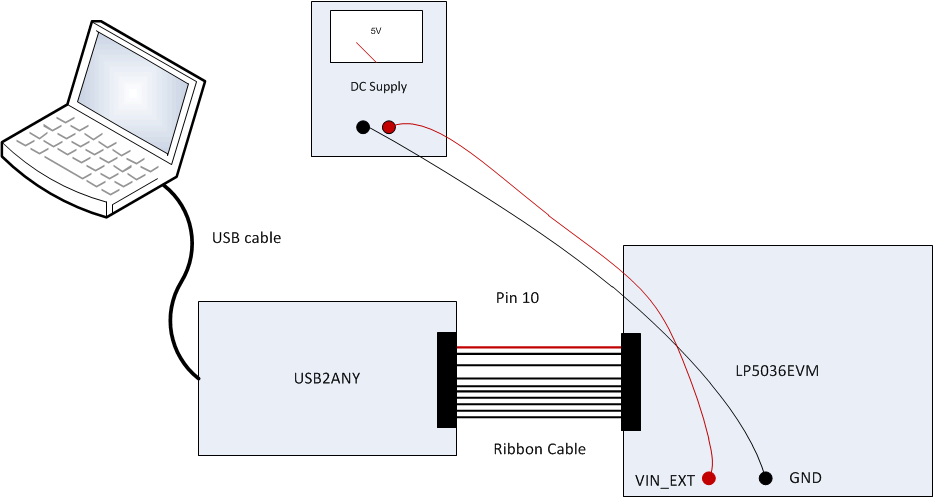 Figure 3. LP5036EVM Hardware Setup
 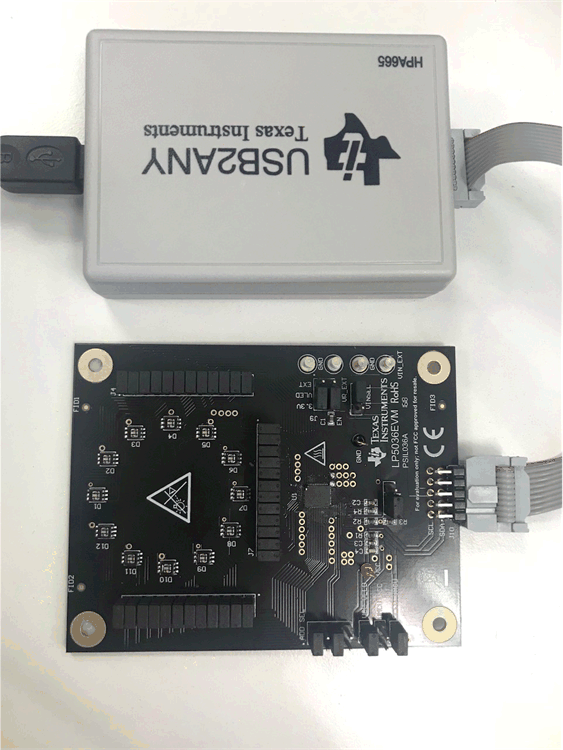 Figure 4. LP5036EVM USB Cable Direction