DLPU093A November 2019 – December 2025 DLP5530-Q1 , DLPC230-Q1 , TPS99000-Q1
2.4 Connecting EVM to the DLPC230-Q1 Control Program
- Start the DLPC230-Q1 Control Program Lite.
- On the connection page set the DLPC230-Q1 Host to SPI and select the Cheetah from the drop down menu (see Figure 2-2). Note, the Cheetah must be connected to computer with USB cable for it to show up in the drop down box.
 Figure 2-2 Connecting to the DLPC230-Q1 Using the DLPC230-Q1 Automotive Control Program
 - Select "Connection Settings" to confirm the SPI configuration shown in Figure 2-3 matches the controller PCB switch settings described in Table 1-3. Specifically, SPI mode and CRC/Checksum may vary based on switch settings. Press "OK" once configuration is complete.
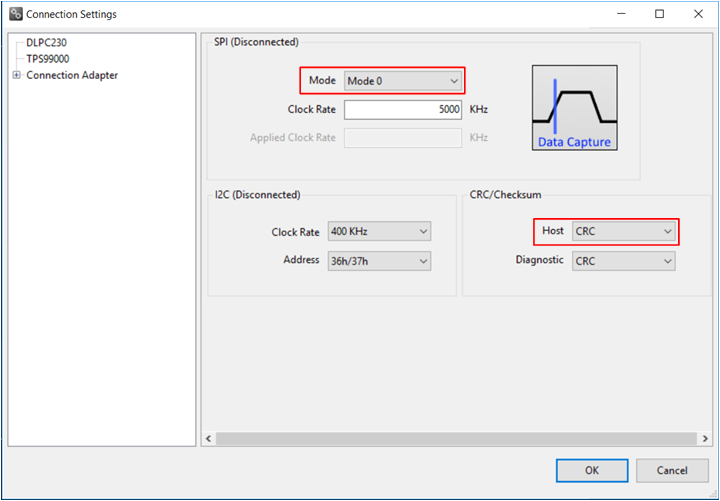 Figure 2-3 DLPC230-Q1 Automotive Control Program Communication Settings
 - Click the Connect button. The green circle next to the Connect button should then light up to indicate that connection was successful to the Cheetah Adapter.